
|
You must have Internal Use Service option turned on at your location (within the Agreement Types rates setting) to use these types of agreements.
Internal Use agreements allow you to track the usage of a unit in your fleet that is temporarily unavailable because of internal reasons (for example, an employee is moving a unit from one location to another, or training another employee, or refueling the vehicle).
Note: Internal Use agreements do not affect your agreement metrics, such as Length of Use (LOU) or utilization, including on reports.
Setup Requirements
- Agreement Types. Turn on the Internal Use Service option within the Agreement Types rates setting.
- Driver eligibility. Designate employees eligible to be drivers, using the Driver check box in the employee record. See "Employee Hub".
How To ...
 Open an Internal Use agreement
Note: Using the mobile app? You can open an Internal Use agreement using a similar process. See "Opening Agreements on the Mobile App" for more information about opening agreements on mobile.
- Click the New Record icon (
 ) in the bottom right corner and select New Agreement, then select Internal as the type of agreement.
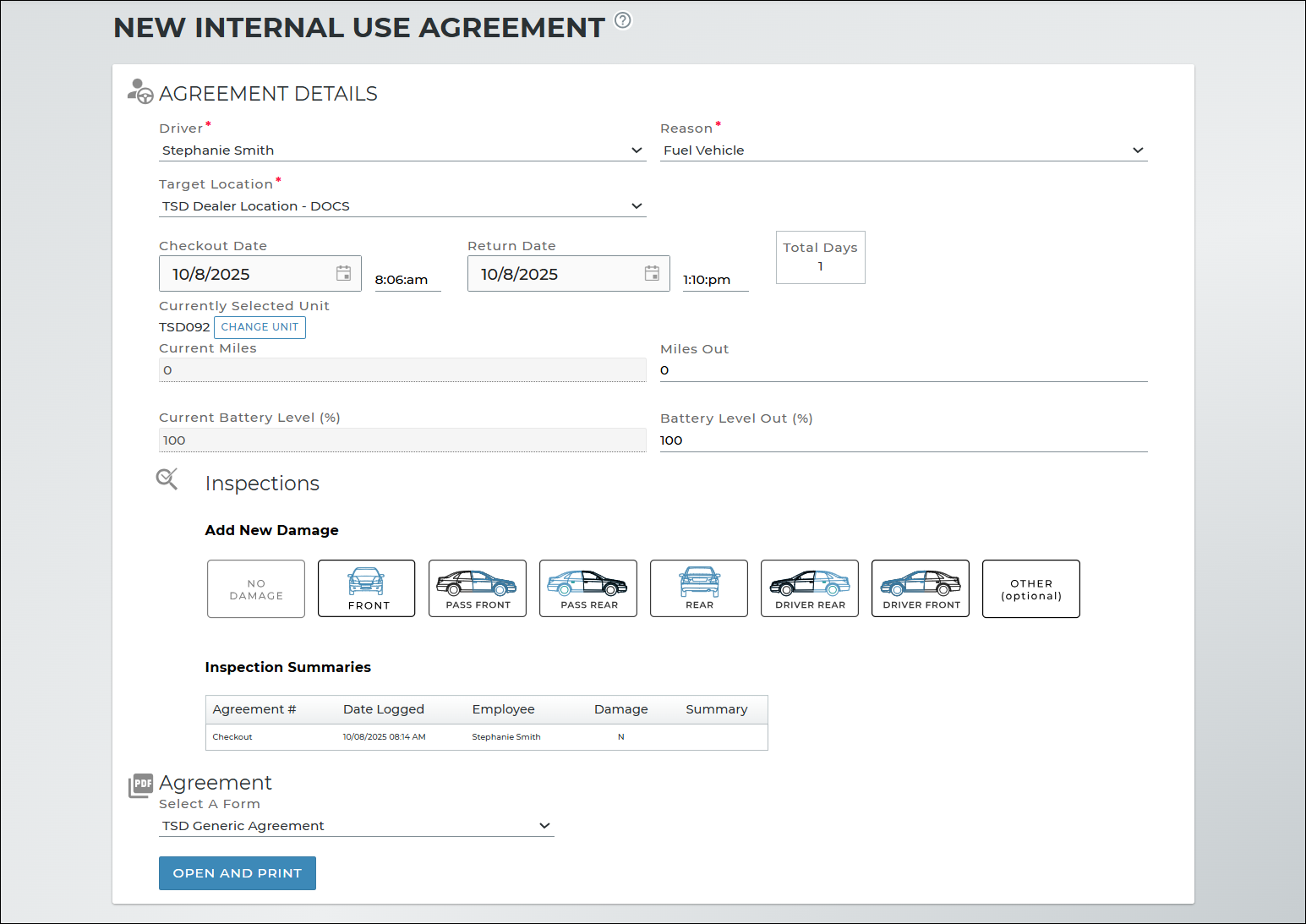
 - Fill in all required fields (*), including a Driver, a Reason for opening the Internal Use agreement (e.g., Transfer to Another Office), and the Target Location to which the unit is being driven.
- Verify the Checkout Date and select a Return Date of no more than 29 days into the future.
- Select a unit that is available for the selected date range, and verify its information.
- BMW locations can use a key reader to retrieve the latest unit data. See "Key Reader Integration" for more information.
- Units are checked for overlaps in availability and other criteria, such as Hard Hold status and recalls. See "Unit Availability & Alerts" for more information.
- After you assign a unit, a button becomes available for you to assign a different unit before opening the agreement.
- If inspections are available on agreements based on your location settings, perform a unit inspection and add any damage, if found. See "Unit Inspections" for more information about inspections.
- Complete the Internal Use agreement processing by doing one of the following:
- Click to open the agreement and print the Internal Use agreement form, if configured for your location.
- Click to open the agreement, if an Internal Use agreement form is not configured for your location.
If you type the Unit Number of a unit that is assigned to another agreement at your location, you may be able to perform a Quick Return for that agreement, See "Perform a Quick Return" for more information.
Hover to view the full-sized image.
Search for internal agreements
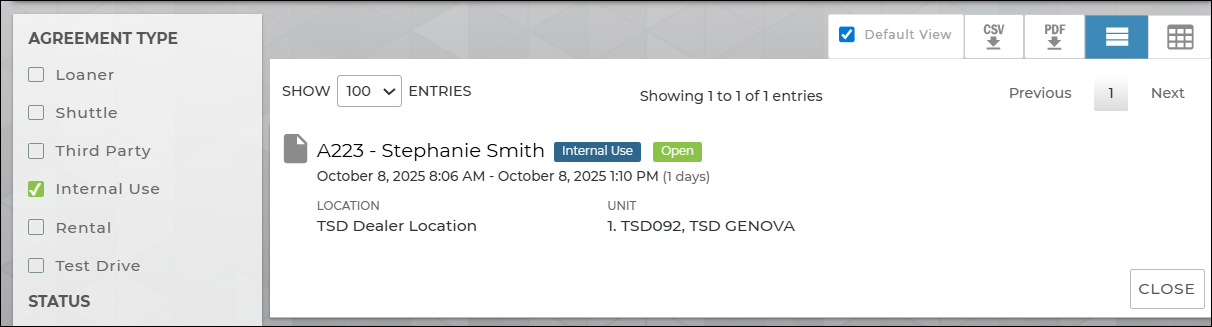
You can quickly locate open internal agreements from the Agreement Operations dashboard by clicking the Open status tile in the Internal Use section.
- Use the Dashboard or the Agreement Hub to locate Internal Use agreements.
- Narrow results by selecting the Internal filter check box under the Agreement Types search filters on the left panel.
Hover to view the full-sized image.
View and edit an Internal Use agreement
- Search for the agreement record, if necessary. Click the record from your search results to view it.
- View the agreement record, and click the edit icon (
 ) next to the section you want to edit. Make your changes, and click .
Close an Internal Use agreement
Note: After closing an Internal Use agreement, the unit's status is returned to its previous status, regardless of the Unit Default Return Status management setting. (For example, if the unit had a status of Dirty before being assigned to the agreement, it is set to Dirty after the agreement is closed.)
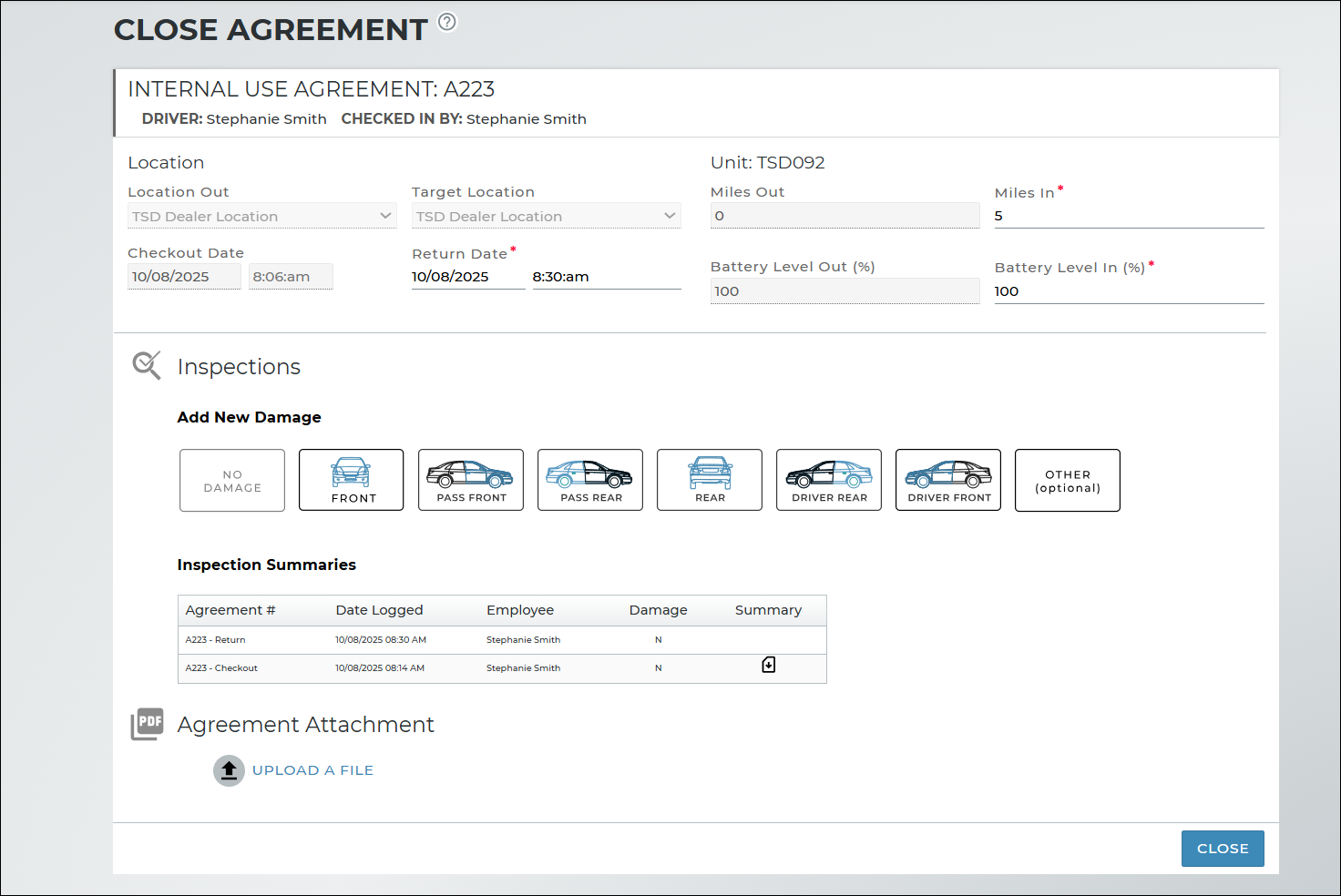
- Search for the internal use agreement, and click .
- Fill in the required information (*).
- If inspections are available on agreements based on your location settings, perform a unit inspection and add any damage, if found. See "Unit Inspections" for more information about inspections.
- Click .
Hover to view the full-sized image.
View Internal Use agreement history
Click the History button on the side panel of an agreement to view field updates and exchanges, including the employee and date and time of the update. for more information.
Glossary of terms
Battery Level (Current Battery Level (%) / Battery Level Out (%) / Battery Level In (%))
Note: These fields are only displayed for electric vehicles (units with a Fuel Type of Electric). Gas vehicles use Fuel Level.
For electric vehicles in your fleet, the Battery Level (%) represents the percentage measurement of the electric charge remaining in the vehicle's battery (e.g., 80%).
You may see this referenced on unit records, agreements, and reports throughout the application:
- Current Battery Level (%): The current battery level percentage recorded in the unit's record; when assigning a unit to an open agreement, this field is displayed for reference only and cannot be edited.
- Battery Level Out (%): The current battery level percentage recorded at the time the unit is assigned to an open agreement; at return during an exchange or close agreement, this field is displayed for reference only and cannot be edited.
- Battery Level In (%): The current battery level percentage recorded at the time the unit is returned during an exchange or close agreement.
Note that, when an agreement is closed, a unit's returning information is saved as a snapshot, so that if the agreement is re-opened in the future, even if the Fuel Type of that unit has changed to gas, the agreement still displays the battery level at the time the agreement was opened.
Checkout Date
Also known as an agreement's Date Out, this is the date on which an appointment is scheduled for pickup (appointments) or the customer was provided with a unit (agreements) or original unit (exchanges).
In any date field, press T on your keyboard for today's date, and use your keyboard arrows for the next and previous days.
Backdating or predating an agreement: You can only select a past Checkout Date if there is no overlap between two agreements with the same unit. You can only select a future Checkout Date if you assign a Unit Pending status to the agreement by clicking , which displays after selecting a future date. See "Checkout Date and Return Date rules" for the full list of rules regarding agreement date ranges.
Note: When editing an agreement, if you're updating the Checkout or Return Date, you can select a Reason (for example, Parts Availability, Awaiting Customer Authorization, or Work in Progress).
Checkout Date and Return Date rules
Fuel Level
Note: These fields are only displayed for gas vehicles (units with a Fuel Type of Gas). Electric vehicles use Battery Level.
For gas vehicles in your fleet, the Fuel Level represents the amount of fuel in the unit's tank in eighths or sixteenths, depending on your system settings.
You may see this referenced on unit records, agreements, and reports throughout the application:
Other fuel-related fields:
- Current Fuel Level: The current amount of fuel in the unit's tank; when assigning a unit to an open agreement, this field is displayed for reference only and cannot be edited.
- Fuel Level Out: The current fuel level amount recorded at the time the unit is assigned to an open agreement; during an exchange (for the returning unit) or close agreement, this field is displayed for reference only and cannot be edited.
- Fuel Level In: The current fuel level amount recorded at the time the unit is returned during an exchange or close agreement.
Turn on a Low Fuel or Missing Fuel alert, so you can be notified when the fuel level of a unit is less than 1/4, when a unit is returned with less fuel than the Fuel Level Out. See "Alerts" for more information.
Note: Fuel and odometer may be automatically retrieved from a vehicle (for example, though an integration with Key Reader
Current Miles, Miles Out, Miles In
Updates to this field are logged in the unit history, accessible via the History button on the side panel of a unit record. See "Unit History (Event Logging)" for more information.
The Current Miles on a unit record reflects the current odometer reading of the unit.
Other odometer-related fields:
- Miles In: The unit's odometer reader at the time of return from an agreement or exchange. Depending on your manufacturer, this may be Customer Miles In and Dealer Miles In on Delivery and Collection agreements.
- Miles Out: The unit's odometer reading, at the time the unit is assigned to an agreement or exchange. Depending on your manufacturer, this may be Dealer Miles Out and Customer Miles Out on Delivery and Collection agreements.
Notes:
- Field validations and restrictions may be applied to this field.Read more.
- Using TSD Telematics Integration? This information may be retrieved from the device and automatically filled in. Read more.
- Using Key Reader integration? This information may be retrieved from the Key Reader service. Read more.
Driver
The employee serving as the driver on the Internal Use agreement. This list includes all employees eligible to be drivers, based on the Driver setting in the employee record.For locations that use Single Sign-On (SSO) to access the application, TSD Support can designate your employees as Drivers, upon request. Email support@tsdweb.com with a list of employee names you want to be made available as Drivers.
Return Date
The expected Return Date is the date and time the customer is expected to return the assigned unit. When the unit is returned and the agreement is being closed, this becomes the actual Return Date and time. You can view this date on appointments, open agreements, unit exchanges, and unit records of In Use units.
When opening or editing an agreement, you cannot select a Return Date that is more than 29 days from the Checkout Date.
Note: When editing an agreement, if you're updating the Checkout or Return Date, you can select a Reason (for example, Parts Availability, Awaiting Customer Authorization, or Work in Progress).
Business Cases regarding the Return Date:
Checkout Date and Return Date rules for agreements and exchanges
Reason
When opening an Internal Use agreement, you must select a reason for the agreement from the list of options:
- Transfer to another office
- Fuel vehicle
- Detail car
- Employee training
- Employee errand
- Other
Target Location
On an Internal Use agreement, this is the location to which the unit will be returned; it is set to the current location, by default.
© 2026 TSD Rental, LLC